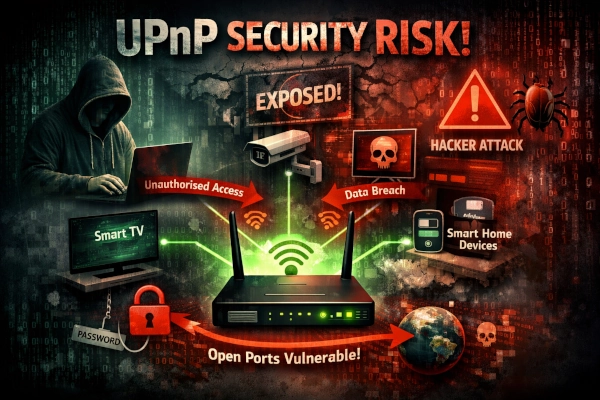
You’ve probably never touched the UPnP setting on your router. Most people haven’t — it ships enabled by default, works silently in the background, and nobody mentions it during setup.
That silence is part of the problem.
UPnP has been exploited by botnets, used to bypass firewalls, leveraged to amplify DDoS attacks, and turned against home users for over fifteen years. It’s still enabled by default on most routers sold today. And the fix takes about two minutes.
TL;DR
- UPnP lets any app on your network open ports in your router — without asking you and without any password
- Malware uses this to punch holes from the internet directly into your home network
- The Mirai botnet, responsible for some of the largest DDoS attacks in history, exploited UPnP at scale
- CVE-2020-12695 (CallStranger) lets attackers use your router for DDoS amplification and data exfiltration — through your UPnP
- Disabling it takes two minutes and breaks almost nothing for normal users
What UPnP Actually Is
Universal Plug and Play. The name sounds harmless — and the original idea was genuinely useful.
Imagine plugging a printer into your home network and having it just work. No manual configuration, no typing in IP addresses, no opening ports. Every device on the network announces itself, discovers others, and negotiates the settings it needs automatically. That’s UPnP.
The problem is one specific part of that negotiation: port forwarding.
When an application needs to receive connections from outside your home — a game server, a video call, a torrent client — it normally can’t, because your router sits in the way and blocks incoming connections by default. UPnP solves this by letting the application ask the router to open a specific port: “Hey router, please forward anything arriving on port 6881 to my computer.”
The router does it. No password required. No confirmation prompt. No log entry that’s easy to find.
Any application that can reach your router can make this request. Including malware.
Why This Is a Problem
Here’s what UPnP’s port forwarding actually looks like from a security perspective:
Before UPnP: Your router blocks incoming connections from the internet. An attacker on the internet cannot reach your computer directly. They would need to compromise your router first, or trick you into connecting to them.
With UPnP enabled: Any software running on any device on your network — your laptop, your phone, your smart TV, your IoT thermostat — can silently open a port on your router, creating a direct path from the internet to that device. The router will honor the request without asking you anything.
Malware that infects one device on your network can use UPnP to:
- Open a backdoor port so attackers can connect to your machine from anywhere on the internet
- Bypass your firewall entirely (because the router is doing the forwarding, not the device)
- Expose other devices on your network to external attack
You won’t see a notification. No warning. The port opens, stays open until the application closes it (or indefinitely if the software crashes without cleaning up), and you have no idea.
Real Attacks That Used UPnP
This isn’t theoretical. UPnP has been actively exploited for years.
Flash UPnP Attack (2008)
Security researcher GNUCitizen demonstrated that a malicious Flash file embedded in a webpage could send UPnP commands to your router — through your browser. No malware needed. Just visiting a webpage was enough to open ports on your router and expose your internal network.
This worked because UPnP has no authentication: any device on the local network can send commands, and at the time, some routers responded to requests coming through the browser from localhost.
Mirai Botnet (2016)
Mirai became one of the most damaging botnets in history. It infected IoT devices — cameras, routers, DVRs — and used their combined bandwidth to launch record-breaking DDoS attacks, including one that took down DNS provider Dyn and made Twitter, Netflix, Reddit, and Spotify unreachable for much of the United States for hours.
One of Mirai’s propagation techniques: scanning for open UPnP services to identify vulnerable devices and expand the botnet. UPnP made devices discoverable that would otherwise have been invisible.
CallStranger — CVE-2020-12695 (2020)
This is the most technically sophisticated UPnP vulnerability, and it affects billions of devices.
UPnP has a feature called subscriptions: a device can ask to be notified when something on another device changes. The notification gets sent to a URL that the requesting device specifies.
CallStranger exploited this by pointing that notification URL at an attacker-controlled server — or at an internal target. The result:
- DDoS amplification: An attacker can use your router to flood a target with traffic, with your IP as the source. Your router does the work; you get the blame.
- Firewall bypass: Attackers can use the subscription callback to exfiltrate data from inside your network to the outside, bypassing security controls that block outbound connections.
- Internal network scanning: Attackers can probe what devices exist inside your network, even from the outside.
The researcher who discovered it found 5.4 billion devices potentially vulnerable. Patches were slow to arrive, and many devices — especially cheap routers and IoT devices — never received them.
“But I’m Just a Normal User. Who Would Target Me?”
Nobody has to specifically target you. This is the part that most people miss.
Automated scanners continuously crawl the internet looking for open services. Shodan and Censys index millions of UPnP-exposed devices. A botnet operator doesn’t care who you are — they care that your device can be used as a DDoS amplification node, a proxy, or a stepping stone to other targets.
More concretely: when we recently audited a Windows machine on a home network, UPnP was one of the findings. The SSDP service (which is UPnP’s discovery component) was running and responding on the network, advertising the router’s presence and capabilities to anything that asked.
That machine wasn’t a target. It just had an open door.
What UPnP Controls on Your Network
UPnP is actually a family of related protocols. The one you’ve probably heard of is SSDP — Simple Service Discovery Protocol — which is the discovery layer. When you plug in a new device and Windows says “Setting up your device…”, SSDP is doing the discovery.
The port-forwarding requests go through a different layer called IGD (Internet Gateway Device), which is what routers expose.
On Windows, UPnP is handled by two services:
- SSDPSRV — the discovery service (finds devices on the network)
- upnphost — the host service (lets your computer respond to UPnP queries and make requests)
Both are enabled by default. Neither is essential for normal home computing.
How to Disable UPnP
Step 1: Disable it on your router (most important)
This is the critical step. Disabling UPnP on your router means no device on your network can open ports automatically — even if that device is compromised.
Log into your router’s admin panel. Usually at 192.168.1.1 or 192.168.0.1 in your browser. If you’re not sure which, look at the label on the back of your router.
The username and password are usually on the same label. If they’ve never been changed, they’re still the factory default.
Once logged in, find UPnP in the settings. It’s usually under:
- Advanced → UPnP
- Advanced → Network → UPnP
- Administration → UPnP
- Or search for “UPnP” in the settings if your router has a search bar
Disable it. Save. Done.
Every router manufacturer does this slightly differently. If you can’t find it, search for “[your router model] disable UPnP” — it’s a common enough operation that there are guides for every major brand.
Step 2: Disable it on Windows
Even with UPnP off on the router, disabling it on Windows removes the local discovery service that broadcasts your computer’s presence on the network.
Windows 11 / 10 — via Services (no command line needed):
- Press
Win + R, typeservices.msc, press Enter - Find SSDP Discovery in the list
- Right-click → Properties → set Startup type to Disabled → click Stop → OK
- Repeat for UPnP Device Host
Or via PowerShell (run as Administrator):
Stop-Service SSDPSRV -Force
Set-Service SSDPSRV -StartupType Disabled

Stop-Service upnphost -Force
Set-Service upnphost -StartupType Disabled
Verify it’s off:
Get-Service SSDPSRV, upnphost | Select-Object Name, Status, StartType
Both should show Stopped and Disabled.
macOS
macOS has its own UPnP/Bonjour implementation, but it’s limited and doesn’t do router port forwarding by default. The main risk on macOS is at the router level — Step 1 covers it.
Linux
# Check if miniupnpd or other UPnP daemons are running
systemctl status miniupnpd 2>/dev/null || echo "miniupnpd not installed"

# Disable if present
sudo systemctl stop miniupnpd
sudo systemctl disable miniupnpd
Most standard Linux desktops don’t run UPnP services. The router is the main concern.
Will Anything Break?
For most home users: no.
The things that use UPnP automatically:
- Online games that need open NAT — some games request UPnP to enable peer-to-peer connections. With UPnP disabled you may see “Strict NAT” or “Moderate NAT” in game settings. Most games still work; some multiplayer modes may have connection issues.
- BitTorrent clients — they use UPnP to open incoming ports. You can set static port forwarding manually in your router as an alternative.
- Older smart home devices — some older Philips Hue bridges, early Sonos speakers, and similar devices used UPnP for discovery. Modern versions have moved to cloud-based or manual configuration.
- Video calling apps — WhatsApp, Zoom, Teams all work without UPnP. They use TURN/STUN servers to handle NAT traversal without port forwarding.
If something stops working after disabling UPnP, you can re-enable it temporarily, identify what needs the specific port, and set up static port forwarding (a manual, controlled alternative) instead of blanket UPnP access.
How to Check If UPnP Is Actually Off
After disabling on your router, verify from Windows:
# Check if SSDP service is still responding on the network
netstat -ano | findstr ":1900"
Port 1900 is SSDP’s default port. If nothing returns, SSDP is not listening. If you see a result, the service is still active — double-check the router and Windows services.
For a more thorough check, a network scanner like nmap (from another device on the network) can confirm:
nmap -sU -p 1900 <your-machine-ip>
# Should show: 1900/udp closed|filtered
The Bigger Picture
UPnP is one of several “convenience features” that were designed to make networks easier to use and ended up making them easier to exploit. The pattern is identical to what we saw with Ollama and local AI tools: a tool built for ease of use ships with open access and assumes the user will handle security separately.
Most users never do, because most users don’t know they need to.
The difference with UPnP is the scale: it’s not just AI tools or developer software. It’s in every consumer router, every Windows PC, and billions of IoT devices. The attack surface is enormous, the awareness is low, and the fix is two minutes.
There’s no good reason to leave it enabled if you’re not actively using it for something specific. Disable it at the router, disable the services on Windows, and remove one more silent opening from your home network.
Quick Checklist
- Log into your router admin panel and disable UPnP
- Disable SSDP Discovery service in Windows (services.msc or PowerShell)
- Disable UPnP Device Host service in Windows
- Verify with
netstat -ano | findstr ":1900"— should return nothing - If a game or app stops working, set up static port forwarding instead of re-enabling UPnP
Related Posts
- Your Local AI Is Listening — And So Is Everyone Else on Your Network — the same pattern with Ollama and developer tools
- Lock the Front Door: Mandatory Security Actions Every Home User Must Take — broader home security baseline
- Why You Should Change Your DNS — another router-level change with outsized privacy impact