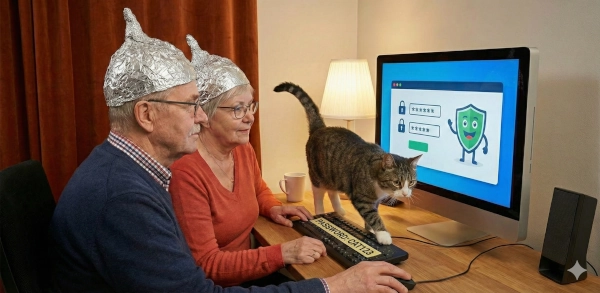
Your home computer knows more about you than your closest friend. Bank accounts, medical records, private photos, tax returns — it’s all there, one weak password away from someone who wants it. And with roughly 4,000 cyber attacks happening every single day, the question isn’t if someone will try your door — it’s whether you’ve bothered to lock it.
The good news? You don’t need to be a cybersecurity expert to make yourself a hard target. Most successful attacks against home users exploit a handful of basic mistakes — mistakes that take minutes to fix. This guide walks you through every mandatory action, step by step, so you can stop being low-hanging fruit.
TL;DR
- Use a password manager and unique passwords for every account — reusing passwords is the #1 way home users get hacked
- Enable multi-factor authentication (MFA) on every account that supports it, especially email and banking
- Keep your operating system, browser, and router firmware updated — most attacks exploit known, already-patched vulnerabilities
- Secure your home router: change default credentials, enable WPA3 encryption, and disable remote management
- Follow the 3-2-1 backup rule: 3 copies, 2 different media types, 1 offsite — ransomware can’t hold you hostage if you have backups
- Treat browser extensions like house keys — only give them to someone you fully trust, and audit them regularly
- Encrypt your hard drive, but understand the trade-offs between BitLocker and open-source tools like VeraCrypt
Table of Contents
- Why This Matters
- 1. Use a Password Manager
- 2. Enable Multi-Factor Authentication
- 3. Keep Everything Updated
- 4. Secure Your Home Router
- 5. Set Up Proper Backups
- 6. Use Built-in Security Tools
- 7. Encrypt Your Hard Drive — But Choose Wisely
- 8. Browser Extensions — The Trojan Horses on Your Toolbar
- 9. Learn to Spot Phishing
- 10. Separate Your IoT Devices
- 11. Harden Your Daily Digital Habits
- What You Can Do Today
- The Bottom Line
Why This Matters — Even If You Think You’re “Not a Target”
“I’m just a regular person — why would anyone hack me?”
This is the most dangerous assumption in cybersecurity. Attackers don’t pick targets by name. They use automated tools that scan millions of devices, looking for anyone with a default password, an unpatched system, or a reused credential from a data breach. You’re not being personally targeted — you’re being swept up in a net cast across the entire internet.
Around 88% of all cyber incidents trace back to human error. That means the most effective security upgrade isn’t a fancy tool — it’s changing your habits. Here are the actions that matter most.
1. Use a Password Manager — Stop Reusing Passwords
The problem: Over 78% of people globally reuse passwords across multiple accounts. When one service gets breached — and breaches happen constantly — attackers take that email-and-password combo and try it on every major site. This is called credential stuffing, and it works disturbingly well.
Think of it like using the same key for your house, car, office, and bank vault. Lose one copy, and everything is wide open.
The fix: Use a password manager. It generates long, random, unique passwords for every account and remembers them for you. You only need to memorize one strong master password.
Recommended password managers:
| Manager | Price | Platforms | Highlights |
|---|---|---|---|
| Bitwarden | Free / $10/year | All | Open-source, audited, excellent free tier |
| 1Password | $36/year | All | Polished UI, travel mode, family plans |
| KeePassXC | Free | Desktop | Fully offline, open-source, no cloud |
Action steps:
- Install a password manager (Bitwarden is a great starting point — it’s free and open-source)
- Import your existing browser-saved passwords into it
- Disable your browser’s built-in password saving
- Over the next few weeks, log into your accounts and let the manager generate new, unique passwords for each one
- Set a strong master password — at least 16 characters, ideally a passphrase like
correct-horse-battery-staple-notebook
Only about 36% of American adults currently use a password manager. Joining that group immediately puts you ahead of most people.
2. Enable Multi-Factor Authentication (MFA) Everywhere
What it is: MFA (Multi-Factor Authentication) adds a second step when you log in — after typing your password, you also confirm your identity through something you have (your phone, a security key) or something you are (fingerprint). Even if an attacker steals your password, they can’t get in without that second factor.
Think of it as a deadbolt on top of your door lock. One lock can be picked. Two is exponentially harder.
MFA methods ranked from strongest to weakest:
| Method | Security Level | Example |
|---|---|---|
| Hardware security key | Highest | YubiKey, Google Titan |
| Authenticator app | High | Authy, Google Authenticator, Microsoft Authenticator |
| Push notification | Medium | “Approve this login” prompts on your phone |
| SMS code | Low (but still better than nothing) | Text message with a 6-digit code |
Why SMS is the weakest: Attackers can hijack your phone number through a technique called SIM swapping — they call your carrier, impersonate you, and redirect your texts to their phone. Authenticator apps don’t have this weakness because the codes are generated locally on your device.
Action steps:
- Start with your email account — if someone controls your email, they can reset passwords to everything else
- Enable MFA on banking and financial accounts
- Enable MFA on social media and cloud storage
- Use an authenticator app instead of SMS wherever possible
- Save your backup/recovery codes in your password manager
3. Keep Everything Updated — Especially Your Operating System and Browser
The problem: When security researchers discover a vulnerability in software, the vendor releases a patch. But that patch only protects you if you actually install it. Attackers know this, and they specifically target known, already-patched vulnerabilities because they know millions of people delay updates.
It’s like a locksmith announcing that a certain lock model can be opened with a paperclip, publishing the free fix, and you choosing not to install it.
What to update and how:
Windows:
- Go to Settings > Windows Update and click Check for updates
- Enable “Get the latest updates as soon as they’re available”
- Restart when prompted — don’t postpone it for weeks
Browser (Chrome, Firefox, Edge):
- Browsers auto-update, but only when you restart them
- If you keep 47 tabs open for months (no judgment), your browser hasn’t updated
- Check: Chrome > three dots menu > Help > About Google Chrome
Applications:
- Enable auto-update in every app that offers it
- Pay special attention to: PDF readers, office suites, video conferencing apps, and Java/Flash (if you still have Flash — remove it immediately, it’s been end-of-life since 2020)
Action step: Right now, go check for pending updates on your OS and browser. Make it a habit to restart your computer at least once a week.
4. Secure Your Home Router — Your Network’s Front Gate
Your router is the gateway between the internet and every device in your home. If an attacker compromises it, they can see your traffic, redirect you to fake websites, and attack every device on your network.
This is not theoretical. In early 2026, researchers uncovered major botnet campaigns compromising millions of home routers by exploiting default passwords and outdated firmware. One in three routers still uses factory-set admin credentials.
The 10-minute router security checklist:
Change the admin password:
- Open your browser and go to
192.168.1.1or192.168.0.1(check the sticker on your router if neither works) - Log in with the current credentials (often
admin/adminor printed on the router) - Navigate to Administration or System settings
- Change the admin password to something strong and save it in your password manager
Update the firmware:
- Look for a Firmware Update or System Update section in your router’s admin panel
- If your router is more than 5 years old and no longer receives firmware updates, it is time to replace it
Enable WPA3 encryption (or WPA2 at minimum):
- In your Wireless Security settings, select WPA3-Personal
- If your router doesn’t support WPA3, use WPA2-AES
- Never use WEP — it can be cracked in minutes
Disable dangerous features:
- Remote Management: Lets someone administer your router from the internet. Turn it off. Research shows 62% of home network ransomware infections exploited remote management access
- WPS (Wi-Fi Protected Setup): The “easy connect” button has known vulnerabilities. Disable it
- UPnP (Universal Plug and Play): Automatically opens ports on your network. Attackers have abused this to create backdoors in millions of devices. Disable it unless a specific application requires it
5. Set Up Proper Backups — The 3-2-1 Rule
Ransomware encrypts your files and demands payment to unlock them. In 2025, ransomware appeared in 44% of all analyzed breaches. The best defense? Backups that the ransomware can’t reach.
The 3-2-1 backup rule is simple:
- 3 copies of your data (the original + 2 backups)
- 2 different storage types (e.g., external hard drive + cloud)
- 1 copy offsite (cloud storage, or a drive kept at a different location)
Practical setup for home users:
| Backup Type | Tool | Cost | Notes |
|---|---|---|---|
| Local backup | Windows Backup / Time Machine | Free | Automated, covers system + files |
| External drive | Any USB hard drive | $50-80 for 2TB | Disconnect after backup so ransomware can’t encrypt it |
| Cloud backup | Backblaze / iDrive | ~$7/month | Automatic, offsite, versioned |
Critical rule: Your external backup drive should be disconnected when not actively backing up. If it’s plugged in 24/7, ransomware will encrypt it along with everything else.
Action steps:
- Set up Windows Backup (Settings > Accounts > Windows Backup) or use File History
- Buy an external drive, back up weekly, and unplug it after each backup
- Consider a cloud backup service for automatic offsite protection
- Test your backups — a backup you’ve never restored might not work when you need it
6. Use Built-in Security Tools — They’re Already There
You don’t need to buy expensive security software. Modern operating systems come with competent built-in protection.
Windows Security (Windows Defender):
- Open Windows Security from the Start menu
- Ensure all sections show green checkmarks:
- Virus & threat protection: Real-time scanning should be ON
- Firewall & network protection: Should be ON for all network types
- App & browser control: Enable SmartScreen for phishing and malware protection
- Device security: Enable Core isolation > Memory integrity if available
Additional Windows hardening:
- Enable Controlled Folder Access (Settings > Privacy & Security > Windows Security > Virus & threat protection > Ransomware protection). This prevents unauthorized apps from modifying your Documents, Pictures, and other important folders — a direct defense against ransomware
- Use a standard user account for daily tasks instead of an administrator account (more on this in section 11)
7. Encrypt Your Hard Drive — But Choose Wisely
If your laptop gets stolen, encryption is the difference between “someone has my hardware” and “someone has my entire life.” Without encryption, anyone can pull your hard drive out, plug it into another computer, and read everything — passwords, documents, photos, saved browser sessions — without needing your Windows login.
But not all encryption is created equal, and the choice matters.
BitLocker — Convenient, But With Caveats
BitLocker is Microsoft’s built-in disk encryption, available on Windows Pro and Enterprise editions. It’s easy to enable, requires zero extra software, and works transparently in the background.
The trust concern: When you set up BitLocker with a Microsoft account, your recovery key is automatically backed up to Microsoft’s cloud. Microsoft has confirmed that it complies with law enforcement requests for these keys when presented with a valid court order. In January 2026, reporting confirmed that Microsoft provided BitLocker recovery keys to the FBI in an investigation, enabling full drive decryption.
This means Microsoft holds a copy of the key that unlocks your entire drive. For most home users defending against laptop theft, this is still vastly better than no encryption. But if you’re concerned about government access to your data, or you simply prefer a zero-trust approach where no third party holds your keys, there’s an alternative.
If you still choose BitLocker, you can mitigate the trust issue:
- Set up BitLocker
- Go to account.microsoft.com/devices/recoverykey
- Save your recovery key locally (in your password manager)
- Delete it from your Microsoft account
This removes Microsoft’s copy. However, Windows may re-upload the key during major updates, so you’ll need to check periodically.
VeraCrypt — You Hold the Only Key
VeraCrypt is a free, open-source encryption tool and the successor to the legendary TrueCrypt. Unlike BitLocker, VeraCrypt never sends your encryption key anywhere. The key exists only on your machine and in your head. No company, no cloud, no third party.
| Feature | BitLocker | VeraCrypt |
|---|---|---|
| Cost | Free (Windows Pro) | Free (all platforms) |
| Open source | No | Yes — publicly audited |
| Key storage | Microsoft cloud (by default) | Local only — you control it |
| Ease of use | Very easy | Moderate — requires setup |
| Full disk encryption | Yes | Yes (system partition) |
| Hidden volumes | No | Yes — plausible deniability |
| Cross-platform | Windows only | Windows, macOS, Linux |
VeraCrypt’s hidden volume feature is worth mentioning: it lets you create an encrypted volume hidden inside another encrypted volume. Even if someone forces you to reveal your password, they see the decoy volume — the real one remains invisible. This is called plausible deniability, and it’s a feature no commercial encryption tool offers.
Action steps:
- Minimum: Enable BitLocker (Windows Pro) or Device Encryption (Windows Home) — any encryption beats none
- Better: Enable BitLocker, then delete your recovery key from Microsoft’s cloud
- Privacy-focused: Install VeraCrypt and encrypt your system partition — you hold the only key
Regardless of which tool you choose — encrypt your drive. An unencrypted laptop is an open book.
8. Browser Extensions — The Trojan Horses on Your Toolbar
Most people think of browser extensions as harmless helpers — ad blockers, dark mode toggles, grammar checkers. But every extension you install gets deep access to your browser, and potentially to everything you do online. A malicious or compromised extension can read your passwords as you type them, steal banking sessions, exfiltrate private messages, and redirect your searches — all while appearing completely normal.
This is not a theoretical risk. It is one of the most active attack vectors in 2025-2026.
The Scale of the Problem
“Sleeper” extensions that turned hostile: In late 2025, researchers discovered that a set of browser extensions installed by 4.3 million Chrome and Edge users suddenly turned malicious — after behaving normally for seven years. The extensions began downloading malicious JavaScript, collecting browsing data, and sending everything to a command-and-control server. Seven years of trust, erased overnight.
Supply chain hijacking: In late 2024, over 30 Chrome Web Store extensions were found injecting malicious code that stole credentials and session cookies. The attackers didn’t build new extensions — they compromised existing, legitimate ones by hijacking developer accounts.
AI conversation theft: In January 2026, two Chrome extensions with over 900,000 combined installs were caught exfiltrating users’ ChatGPT and DeepSeek conversations — along with every URL they visited — to a remote server, every 30 minutes.
The GhostPoster campaign: 17 malicious extensions across Chrome, Edge, and Firefox operated undetected for five years, affecting 840,000 users. When they were finally discovered and removed from browser stores, not a single affected user was notified. The extensions kept running on infected devices. (We covered this in depth in our article: Browser Vendors Fail Users: Millions Infected, Zero Notifications Sent)
Why Extensions Are So Dangerous
When you install an extension and it asks for permission to “Read and change all your data on all websites,” that is exactly what it can do. It can:
- See every password you type into every login form
- Read your email, banking sessions, and private messages
- Modify web pages to show fake content (like a different bank balance)
- Redirect your searches through affiliate links to earn money
- Inject cryptocurrency mining scripts into every page you visit
The browser store vetting process catches some bad actors, but it’s far from perfect. Google reviews new extensions carefully, but updates to existing extensions receive less scrutiny — which is exactly why attackers buy or hijack established extensions and then push a malicious update.
How to Protect Yourself
The golden rule: Install as few extensions as possible. Every extension is a potential attack surface. If you wouldn’t give a stranger the keys to your house, don’t give a random extension access to your entire browser.
Practical steps:
- Audit your extensions right now. Open
chrome://extensions(orabout:addonsin Firefox). Remove everything you don’t actively use. That coupon-finder you installed three years ago? Remove it - Check permissions. Click “Details” on each remaining extension. Does a dark mode extension need access to “all your data on all websites”? That’s a red flag. A dark mode tool only needs permission to modify page appearance
- Stick to well-known, reputable extensions. A good starting list for most users:
- uBlock Origin — open-source ad and malware blocker
- Bitwarden (or your password manager’s extension)
- Beyond that, seriously question whether you need anything else
- Review extensions periodically. Set a calendar reminder every 3 months. Check if any extension has changed ownership, been flagged, or added suspicious permissions
- Never install extensions from links in emails or pop-ups. Always go to the official browser store, search by name, and verify the developer
- Consider using separate browser profiles. Use one profile for banking and sensitive activities (with minimal or zero extensions) and another for casual browsing
9. Learn to Spot Phishing — The Attack That Bypasses Every Technical Control
You can have the best password, MFA, and firewall in the world — and still get compromised by clicking one convincing phishing link. Phishing attacks increased by over 1,200% in the past year, largely driven by AI tools that generate flawless, personalized messages.
Red flags to watch for:
- Urgency: “Your account will be suspended in 24 hours!” — legitimate companies don’t pressure you like this
- Sender mismatch: The display name says “Microsoft” but the email address is
support@micr0soft-security.com - Hover before you click: Move your mouse over any link (don’t click) to see the actual URL. Does
amazon.com.evil-site.netlook right? No — the real domain isevil-site.net - Unexpected attachments: You didn’t ask for an invoice, a shipping notice, or a “photo from last weekend” — don’t open it
- Too good to be true: You haven’t won a prize. Nobody is giving you free cryptocurrency
The AI problem: Phishing emails used to be easy to spot — bad grammar, weird formatting, obviously fake logos. AI has changed that. Modern phishing messages are grammatically perfect, properly formatted, and often personalized with details scraped from your social media. You can no longer rely on “it looks suspicious” as your only filter.
When in doubt:
- Don’t click links in the email at all
- Open your browser manually and go directly to the website (type the URL yourself)
- Log in from there and check if there’s actually an issue with your account
- If someone calls claiming to be your bank, hang up and call the number on the back of your card
10. Separate Your IoT Devices on a Guest Network
Smart TVs, security cameras, robot vacuums, smart speakers — these “Internet of Things” (IoT) devices are convenient, but they often have terrible security. Many run outdated software, never receive updates, and can’t run antivirus.
If an attacker compromises your smart light bulb (yes, this has happened), and it sits on the same network as your laptop, they can use it as a stepping stone to reach your personal files.
The fix: Most modern routers let you create a guest network. Put all your IoT devices on the guest network and keep your computers and phones on the main network. This way, even if a smart device gets hacked, it’s isolated — it can’t see or reach your primary devices.
How to set it up:
- Log into your router admin panel
- Find the Guest Network or Guest Wi-Fi option
- Enable it with a different password than your main network
- Connect all IoT devices to the guest network
- Keep your PCs, laptops, and phones on the main network
11. Harden Your Daily Digital Habits
The actions above cover the major attack vectors. But there’s a layer of everyday habits that quietly improve your security posture — small changes that add up to a significantly harder target.
Change Your DNS — Stop Using Your ISP’s Default
DNS (Domain Name System) is like the phone book of the internet. When you type google.com, DNS translates it to an IP address. By default, your computer uses your Internet Service Provider’s DNS servers — which means your ISP can see every website you visit, and some ISPs sell this data to advertisers.
Privacy-focused DNS providers don’t log your queries and often include built-in malware and phishing domain blocking.
| Provider | Address | Highlights |
|---|---|---|
| Cloudflare | 1.1.1.1 / 1.0.0.1 | Fastest, privacy-audited, no logging |
| Quad9 | 9.9.9.9 / 149.112.112.112 | Blocks known malicious domains automatically |
| Mullvad DNS | 194.242.2.2 | No logging, run by privacy-focused VPN company |
How to change DNS on Windows:
- Open Settings > Network & Internet > Wi-Fi (or Ethernet) > your connection
- Click Edit next to DNS server assignment
- Switch from Automatic to Manual
- Enter your chosen DNS addresses for both IPv4 and IPv6
Use a Standard User Account — Not Admin
Most people run Windows with an administrator account for everyday use. This means every program you run — including malware — has full system access.
The fix is simple: create a standard (non-admin) user account for daily use. When something genuinely needs admin access, Windows will ask you for the admin password. This one change blocks a huge category of malware that relies on running with elevated privileges.
How to set it up:
- Go to Settings > Accounts > Other users > Add account
- Create a new local account
- Ensure your existing admin account has a strong password
- Use the standard account for daily tasks
Lock Your Screen Automatically
If you step away from your computer — at a coffee shop, at work, even at home — an unlocked screen is an open invitation.
- Press Win + L to lock manually (make it a habit)
- Set auto-lock: Settings > Accounts > Sign-in options > Require sign-in — set to “When PC wakes from sleep”
- Set a screen timeout: Settings > System > Power > Screen and sleep — 5 minutes is reasonable
Review Your Email Security Settings
Your email account is the skeleton key to your digital life. If someone controls your email, they can reset passwords to everything else. Beyond enabling MFA (which you’ve already done, right?), check these settings:
- Forwarding rules: Go into your email settings and check if any forwarding rules exist that you didn’t create. Attackers sometimes set up silent forwarding to receive copies of all your email
- Connected apps: Review which third-party apps have access to your email account. Revoke access for anything you don’t recognize or no longer use
- Recovery options: Make sure your recovery email and phone number are current and haven’t been changed by someone else
Enable HTTPS-Only Mode
Most browsers can force every connection to use HTTPS (encrypted) instead of HTTP (unencrypted). This prevents attackers on the same network — like a public Wi-Fi — from reading your traffic.
- Firefox: Settings > Privacy & Security > scroll to HTTPS-Only Mode > Enable in all windows
- Chrome: Settings > Privacy and Security > Security > Always use secure connections
- Edge: Settings > Privacy, search, and services > Enhance your security on the web
Review Windows Privacy Settings
Windows collects telemetry data by default. While not a direct security threat, minimizing data collection is part of a privacy-conscious approach:
- Settings > Privacy & Security > General — turn off advertising ID, content suggestions, and app launch tracking
- Settings > Privacy & Security > Diagnostics & feedback — set to “Required diagnostic data” only
- Settings > Privacy & Security > Activity history — turn off activity history if you don’t use Timeline
What You Can Do Today — The Security Sprint
You don’t have to do everything at once. Here’s the priority order — even doing just the first three items today will dramatically improve your security:
| Priority | Action | Time |
|---|---|---|
| 1 | Install a password manager and change your email password | 10 min |
| 2 | Enable MFA on your email and bank accounts | 10 min |
| 3 | Check for OS and browser updates, install them | 5 min |
| 4 | Log into your router and change the admin password | 5 min |
| 5 | Audit and remove unused browser extensions | 5 min |
| 6 | Verify Windows Security is enabled and all green | 3 min |
| 7 | Encrypt your hard drive (BitLocker or VeraCrypt) | 15-30 min |
| 8 | Set up automatic backups | 15 min |
| 9 | Change your DNS to Cloudflare or Quad9 | 3 min |
| 10 | Create a guest network for IoT devices | 10 min |
| 11 | Switch to a standard user account for daily use | 10 min |
| 12 | Review email forwarding rules and connected apps | 5 min |
Every action in this list is something you do once (or once a year for updates like router firmware) and then it protects you continuously. The effort-to-protection ratio is enormous.
The Bottom Line
Cybersecurity for home users isn’t about paranoia or buying expensive tools. It’s about closing the gaps that automated attackers exploit in bulk. A unique password, a second authentication factor, an updated system, a cleaned-up browser, and a backed-up, encrypted drive — these things alone would prevent the vast majority of successful attacks against home users.
But it goes beyond tools. The biggest shift is thinking differently about trust. That browser extension with 500,000 installs? It could turn hostile tomorrow. That “urgent” email from your bank? It’s probably not from your bank. That laptop with no encryption? It’s a treasure chest with no lock.
You don’t need to be unhackable. You just need to be harder to hack than the millions of people who haven’t done these basics. Attackers, like burglars, move on to the easier target.
Take an hour today. Your future self will thank you.
Sources
- VikingCloud — 207 Cybersecurity Statistics for 2026
- SentinelOne — Cyber Security Best Practices for 2026
- SQ Magazine — Password Manager Statistics 2026
- JumpCloud — 2025 Multi-Factor Authentication Statistics & Trends
- Krebs on Security — The Kimwolf Botnet is Stalking Your Local Network
- CXOToday — The Home Router Crisis of 2026
- Deepstrike — Password Statistics for 2026: Breaches & MFA Trends
- GitProtect — 30 Cybersecurity Statistics You Must Know in 2026
- WinBuzzer — Microsoft Gave The FBI BitLocker Keys
- TechRadar — Microsoft Confirms It Will Give Your BitLocker Keys to the FBI
- Malwarebytes — Sleeper Extensions Woke Up as Spyware on 4 Million Devices
- Malwarebytes — Millions Spied On by Malicious Browser Extensions
- The Hacker News — Chrome Extensions Stealing ChatGPT and DeepSeek Chats
- OX Security — 900K Users Compromised: Chrome Extensions Steal AI Conversations
- NMS Consulting — Latest Cybersecurity Best Practices 2026
- ACM — Seven Cybersecurity Tips for 2026