TL;DR
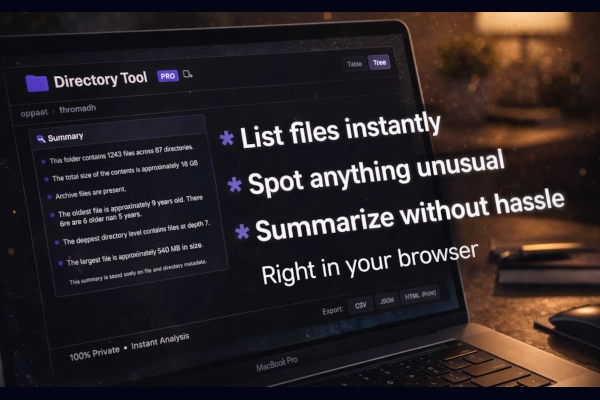
Directory Tool Pro is a Chrome extension that performs client-side file analysis using the File System Access API. It scans directory structures locally for secrets, credentials, backups, and other security-relevant patterns without uploading data to cloud services. The tool uses regex-based detection with smart filtering to reduce false positives and supports virtual scrolling for analyzing directories with 50,000+ files.
Table of Contents
- What It Does
- Use Cases
- Technical Implementation
- Detection Patterns
- Performance Considerations
- Limitations
- Summary
- Important Links
What It Does
Directory Tool Pro analyzes file and directory structures entirely in the browser. When you point it at a directory, it scans filenames against predefined patterns looking for potentially sensitive files: API keys, SSH keys, database dumps, configuration files, and backup files.
The extension runs 100% client-side. No file contents or metadata leave your machine. This makes it suitable for analyzing production servers, client codebases, or any environment where data exfiltration is a concern.
Core Features
- Zero installation: Works directly in Chrome browser, no CLI tools or dependencies required
- Secrets detection: Regex patterns for
.envfiles, private keys, OAuth tokens, credentials - File categorization: Identifies backups, configs, databases, executables, temporary files
- Metadata analysis: Flags hidden files, large files (>500MB), empty files, old files (>2 years)
- Export options: CSV, JSON, TXT, HTML formats for documentation
- Audit notes: Add notes to specific files during analysis
- Virtual scrolling: Handles 50,000+ files without browser crashes
Use Cases
Penetration Testing
During initial reconnaissance on a compromised system, attackers systematically search for credentials and secrets. Directory Tool Pro replicates this workflow for authorized testing. Load a target directory and immediately see what an attacker would prioritize.
Example scenario: You’ve gained read access to a web application directory. Rather than manually running find commands, drag the directory into the extension. Within seconds, you’ll see flagged .env files, id_rsa keys, and credentials.json files.
Code Audits
Before committing code or sharing a repository, scan it for accidentally included secrets. Developers frequently commit .env.local files, API tokens in config files, or database dumps in test directories.
The extension’s false positive filtering helps here. It excludes files matching _test., _example., and similar patterns from secrets detection, reducing noise.
Compliance Checks
Security teams auditing shared drives or network storage can identify files that shouldn’t exist in those locations: SSH private keys, database exports, password manager files (.kdb, .kdbx).
Export results to CSV for documentation, add audit notes to flagged files, and generate reports for remediation tracking.
Post-Compromise Analysis
After a security incident, you need to understand what data an attacker could have accessed. Load the compromised directory structure and see exactly what sensitive files were exposed based on filename patterns.
Technical Implementation
The extension uses the File System Access API, which provides read access to local directories through a browser sandbox. This API requires explicit user permission and doesn’t work with arbitrary file paths—the user must actively select a directory.
Architecture
User selects directory
    ↓
File System Access API grants handle
    ↓
Recursive directory scan
    ↓
Regex pattern matching on filenames
    ↓
Results filtered and categorized
    ↓
Virtual scrolling renders results
The manifest requires zero permissions:
{
  "manifest_version": 3,
  "name": "Directory Listing Tool Pro",
  "permissions": [],
  "offline_enabled": true
}
This is intentional. No network access, no broad permissions. The extension can’t exfiltrate data even if compromised.
Performance Optimization
For large directories, the extension implements several optimizations:
- Quick counting: Before full scan, estimate file count to warn users about 10,000+ item directories
- Virtual scrolling: Only renders visible rows in the UI, keeping memory usage constant
- Web Workers (considered but not implemented): Current implementation runs on main thread due to File System API limitations
Detection Patterns
The analyzer uses two types of rules: regex-based and function-based.
Regex-Based Rules
Secrets pattern (excerpt):
\.env$|^\.env\.|id_rsa|id_dsa|\.pem$|\.p12$|\.pfx$|
\.keystore$|\.jks$|\.key$|private[_-]key|
access[_-]?token|api[_-]?token|bearer[_-]?token|
oauth[_-]?token|secret[_-]?key|api[_-]?secret|
credentials?\.json|credentials?\.yaml|\.kdb$|\.kdbx$
This catches common patterns for credentials, but also applies exclusion filters:
_test\.|\.test\.|test[_-]|_example\.|example[_-]|
_template\.|template[_-]|\.cpp$|\.h$
Files matching the exclusion pattern are not flagged as secrets, reducing false positives from test fixtures and code examples.
Other categories:
- Backups:
\.bak$|\.old$|backup|~$ - Databases:
\.db|\.sqlite|\.sql|\.dump - Executables:
\.(exe|bat|cmd|ps1|sh|msi|dll|jar)$ - Config files:
\.conf|\.ini|\.xml|\.yaml|\.yml|\.json
Function-Based Rules
Some checks require logic beyond regex:
{
  id: 'large',
  name: 'Large File',
  test: (file) => file.size > 500 * 1024 * 1024
},
{
  id: 'old',
  name: 'Old File',
  test: (file) => {
    const twoYearsAgo = Date.now() - (2 * 365 * 24 * 60 * 60 * 1000)
    return file.lastModified < twoYearsAgo
  }
}
Performance Considerations
Scanning Speed
On a modern machine (2023+ hardware):
- 10,000 files: ~5-10 seconds
- 50,000 files: ~30-60 seconds
- 100,000+ files: 60-120 seconds
The bottleneck is the File System Access API’s directory traversal, not the regex matching. Each file requires an async operation to read metadata.
Memory Usage
Virtual scrolling keeps memory usage stable regardless of result count. The extension can handle 100,000+ results in the table view without performance degradation. Tree view is limited to ~20,000 files before UI responsiveness suffers.
Browser Compatibility
Chrome-only due to File System Access API support. Firefox and Safari don’t implement this API. The extension won’t function in other browsers.
Limitations
Filename-Only Analysis
The extension analyzes filenames, not file contents. A file named config.txt containing API keys won’t be flagged unless the filename matches a pattern. This is by design—content analysis would require reading potentially gigabytes of data and raises privacy concerns.
Regex False Positives
Pattern-based detection inherently produces false positives. A file named private_keys_documentation.md will be flagged despite being documentation, not an actual key file. The exclusion filters help but don’t eliminate this issue.
No Deep Content Scanning
Tools like trufflehog or gitleaks scan file contents for secrets using entropy analysis and more sophisticated patterns. Directory Tool Pro doesn’t do this. It’s a fast triage tool, not a comprehensive secrets scanner.
Chrome Dependency
The File System Access API is Chrome-specific. This limits the tool’s usefulness for teams standardized on Firefox or Safari. There are no plans to port to other browsers due to API availability.
Summary
Directory Tool Pro fills a specific niche: fast, local file analysis for security workflows. It won’t replace dedicated secrets scanners, but for quick triage during pentesting, code audits, or compliance checks, it provides value.
Key advantages:
- No installation or dependencies - runs directly in browser
- No data leaves the browser
- Fast analysis of large directory structures
- Useful filename-based heuristics
- Export and documentation features
When to use it:
- Initial reconnaissance during authorized testing
- Pre-commit checks for accidental secrets
- Shared drive audits for compliance
- Post-incident analysis of exposed directories
When not to use it:
- Deep content analysis (use
trufflehog,gitleaks) - Automated CI/CD scanning (use dedicated scanners)
- Cross-browser compatibility required
- Analysis of files without local access
The tool is available on the Chrome Web Store and is open source. For security-focused workflows where client-side processing is required, it’s a practical addition to your toolkit.